
Microsoft Surface Buying Guide: So, you’re thinking about joining the Surface squad? Smart move. But with a lineup ranging from sleek laptops to powerful tablets, choosing the right Surface can feel like navigating a tech labyrinth. This guide cuts through the confusion, breaking down the key differences between each model—Surface Laptop, Surface Pro, Surface Go, and even the beastly Surface Studio—to help you find your perfect match. We’ll dive deep into specs, accessories, and even uncover hidden gems to maximize your Surface experience.
From the initial Surface RT’s groundbreaking design to the current generation’s powerhouse processors and stunning displays, Microsoft’s Surface line has constantly evolved. This guide will equip you with the knowledge to understand this evolution and choose a Surface that perfectly aligns with your needs, budget, and workflow. Whether you’re a student, creative professional, or just looking for a top-tier device, we’ve got you covered.
Introduction to Microsoft Surface Devices
Microsoft Surface devices have carved a unique niche in the tech world, offering a compelling blend of sleek design, powerful performance, and versatile functionality. They’re not just laptops or tablets; they’re a hybrid category unto themselves, appealing to a broad spectrum of users from students and creative professionals to business executives and casual users. This guide will help you navigate the Surface ecosystem and find the perfect device for your needs.
The Surface line’s journey began in 2012 with the original Surface RT tablet, a bold attempt to challenge the iPad’s dominance. While the initial foray wasn’t entirely smooth, it laid the groundwork for the innovative devices we see today. Subsequent iterations saw Microsoft refine its design and expand its offerings, incorporating features like the detachable keyboard, the Surface Pen, and increasingly powerful processors. The Surface line’s evolution reflects Microsoft’s commitment to innovation and its ambition to create devices that seamlessly integrate hardware and software.
Surface Device Models Compared
The following table provides a comparison of key specifications for several popular Surface models. Note that specifications may vary slightly depending on the configuration chosen. This table highlights the core differences to help you decide which Surface is right for you.
| Model | Screen Size | Processor | RAM Options | Storage Options |
|---|---|---|---|---|
| Surface Laptop 5 | 13.5″ or 15″ | Intel Core i5 or i7 | 8GB, 16GB, 32GB | 256GB, 512GB, 1TB |
| Surface Pro 9 | 13″ | Intel Core i5 or i7, or Microsoft SQ3 | 8GB, 16GB, 32GB | 128GB, 256GB, 512GB, 1TB |
| Surface Go 3 | 10.5″ | Intel Pentium Gold or Intel Core i3 | 4GB, 8GB | 64GB, 128GB |
Choosing the Right Surface Model
Picking the perfect Microsoft Surface can feel like navigating a tech minefield. With several models boasting unique features and capabilities, understanding the nuances between them is key to making a purchase that truly fits your needs and budget. This guide breaks down the key differences between the Surface Laptop, Surface Pro, Surface Go, and Surface Studio, helping you choose the Surface that’s right for you.
Surface Model Comparison: Use Cases
Each Surface model caters to a specific user profile and workflow. The Surface Laptop, for instance, prioritizes a traditional laptop experience with a sleek design and comfortable keyboard, ideal for students, writers, and anyone who spends significant time typing. The Surface Pro, on the other hand, is a 2-in-1 powerhouse, transforming from a laptop to a tablet with the detachable keyboard, making it a versatile option for professionals needing both portability and power. The Surface Go offers a more compact and affordable option, perfect for casual users or those who prioritize portability above all else. Finally, the Surface Studio, with its stunning adjustable touchscreen, targets creative professionals such as graphic designers, photographers, and video editors who demand a large, high-resolution display for their work.
Surface Model Comparison: Performance
Performance varies significantly across the Surface lineup. Higher-end models typically boast more powerful processors, like Intel Core i7, offering smoother multitasking and faster application loading times compared to the lower-end Intel Core i3 or i5 processors found in some Surface Go models. RAM capacity also plays a crucial role, with 8GB or 16GB options impacting how many applications you can run simultaneously without experiencing performance slowdowns. For example, a Surface Pro with 16GB RAM will handle video editing far more efficiently than a Surface Go with 4GB RAM. The Surface Studio, designed for demanding creative tasks, generally comes equipped with powerful processors and generous RAM allocations to ensure optimal performance.
Surface Model Comparison: Portability, Battery Life, and Price
Portability is a key differentiator. The Surface Go is the most portable, easily fitting into a bag and ideal for on-the-go use. The Surface Pro, while slightly larger, remains relatively portable, offering a balance between portability and power. The Surface Laptop strikes a balance between portability and performance, while the Surface Studio, due to its larger screen and all-in-one design, is the least portable. Battery life also varies, with the Surface Go generally offering the longest battery life due to its less power-hungry components, while the Surface Studio, with its high-resolution display, tends to have a shorter battery life. Price reflects the features and performance capabilities; the Surface Go represents the most affordable option, while the Surface Studio commands a premium price due to its advanced features and targeted professional use.
Specifications and Features
Choosing the right Surface device isn’t just about aesthetics; it’s about understanding the nitty-gritty details that will impact your daily workflow. This section dives deep into the technical specifications and features of each Surface model, empowering you to make an informed decision. We’ll break down the key components, from processing power to display quality, and explore the added value of accessories like the Surface Pen and Type Cover.
Understanding the technical specifications is crucial for determining which Surface model best suits your needs. Factors like processing power, RAM, storage capacity, and display resolution directly impact performance and user experience. Similarly, the inclusion of features like a stylus and keyboard significantly affect productivity and versatility.
Surface Model Specifications
The following table summarizes the key specifications for several popular Surface models. Note that specific configurations and options may vary depending on the retailer and time of purchase. Always check the latest specifications on the Microsoft website before making a purchase.
| Model | Processor | RAM | Storage | Display Resolution | Connectivity |
|---|---|---|---|---|---|
| Surface Laptop 5 | Intel Core i5/i7 or AMD Ryzen 5/7 | 8GB/16GB | 256GB/512GB/1TB | 13.5″ or 15″ (various resolutions depending on screen size) | Wi-Fi 6, Bluetooth 5.1, USB-C, USB-A |
| Surface Pro 9 | Intel Core i5/i7 or Microsoft SQ3 | 8GB/16GB/32GB | 128GB/256GB/512GB/1TB | 13″ (various resolutions depending on model) | Wi-Fi 6, Bluetooth 5.1, Thunderbolt 4, USB-C |
| Surface Go 3 | Intel Pentium Gold/Core i3 | 4GB/8GB | 64GB/128GB | 10.5″ (1920 x 1280) | Wi-Fi 6, Bluetooth 5.0, USB-C |
| Surface Studio 2+ | Intel Core i7 | 32GB | 1TB/2TB | 28″ (4500 x 3000) | Wi-Fi 6, Bluetooth 5.0, USB-C, USB-A, SD card reader |
Surface Pen Functionality
The Surface Pen is more than just a stylus; it’s a precision tool designed to enhance your digital creativity and productivity. Its tilt and pressure sensitivity allow for natural, expressive inking, making it ideal for note-taking, sketching, and digital art.
- Precision Ink: The pen’s pressure sensitivity allows for varying line weights and shading, mimicking the feel of a traditional pen or pencil.
- Tilt Recognition: Tilting the pen allows for shading and artistic effects, adding depth and dimension to your creations.
- Palm Rejection: The Surface Pen’s technology allows for natural writing and drawing without accidental palm input.
- Ergonomic Design: The pen’s comfortable grip ensures hours of comfortable use.
Surface Type Cover Features
The Surface Type Cover transforms your Surface device into a laptop, offering a comfortable typing experience and added functionality. Its sleek design and durable construction provide a seamless integration with the tablet.
- Full-Sized Keyboard: Provides a comfortable typing experience for extended use.
- Trackpad Integration: Offers precise cursor control and navigation.
- Protective Functionality: Provides a degree of protection for the screen when closed.
- Backlit Keys (on select models): Enables easy typing in low-light conditions.
Operating System Compatibility
Understanding the operating system (OS) is vital as it determines the applications and software you can run on your Surface device. Microsoft’s Surface devices primarily run on Windows 11, offering access to a vast library of software and applications. However, some older models might still run on Windows 10.
- Windows 11: The latest version of Windows, offering improved performance, security, and features. Most current Surface models ship with Windows 11.
- Windows 10 (on select older models): While still functional, Windows 10 no longer receives security updates, making it less secure than Windows 11.
Software and Ecosystem
The Surface experience isn’t just about the hardware; it’s deeply intertwined with the software and the broader Microsoft ecosystem. This synergy ensures a seamless and optimized user experience, leveraging the strengths of both the device’s design and Windows 11’s capabilities. Let’s dive into how this powerful combination works.
Windows 11’s integration with Surface devices is a masterclass in harmonious design. The operating system is meticulously tailored to take advantage of the Surface’s touch capabilities, pen input, and often unique hardware features. This isn’t just about compatibility; it’s about a deeply integrated experience where hardware and software work in perfect unison, offering a level of fluidity and responsiveness often unmatched by other 2-in-1 devices. This seamless integration results in a more intuitive and efficient workflow, particularly for creative professionals and those who frequently switch between touch and keyboard input.
Software Optimized for Surface Touch
Several applications are specifically designed to thrive on the Surface’s touch-friendly interface. These apps aren’t simply adapted for touch; they are built from the ground up to leverage the multi-touch capabilities, pen input, and often the unique aspect ratios of various Surface models. For instance, Microsoft Whiteboard offers a fluid, collaborative experience for brainstorming and note-taking, fully optimized for the Surface Pen’s precision and responsiveness. Similarly, many creative applications, such as Adobe Photoshop and Illustrator, take full advantage of the touch screen, enabling intuitive editing and manipulation of images and designs. The Surface’s precise pen input allows for a level of detail comparable to traditional drawing tools, making it a powerful tool for digital artists. These examples showcase the level of optimization available to users, maximizing the capabilities of both the software and the hardware.
Microsoft 365 and the Surface Ecosystem
Microsoft 365 is more than just a suite of productivity applications; it’s a core component of the Surface ecosystem. Its seamless integration with Surface devices enhances productivity and collaboration. The familiar applications like Word, Excel, PowerPoint, and OneNote are optimized for touch input and the Surface Pen, allowing for natural and intuitive document creation and editing. Features like inking and handwriting recognition are particularly enhanced on Surface devices, offering a more fluid workflow compared to using a traditional mouse and keyboard. The cloud-based nature of Microsoft 365 also allows for seamless synchronization across multiple devices, ensuring users can access their work from anywhere. This integration further emphasizes the synergistic relationship between Microsoft’s hardware and software offerings, creating a truly cohesive and productive ecosystem.
Accessories and Peripherals: Microsoft Surface Buying Guide
Source: mininim.ir
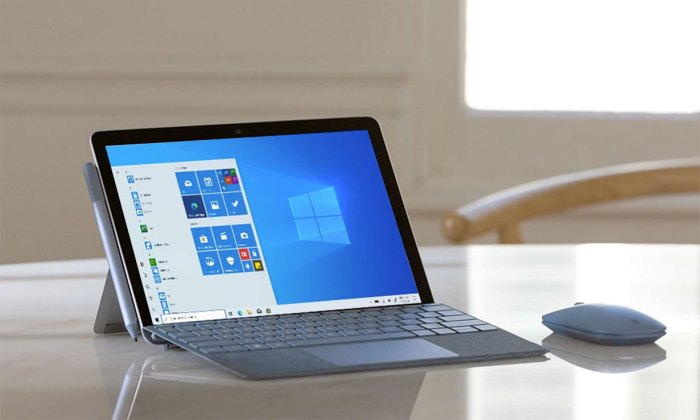
Choosing the right accessories can significantly enhance your Surface experience, transforming it from a capable device into a personalized productivity powerhouse. The right peripherals can boost your workflow, improve comfort, and unlock hidden potential depending on your needs. Let’s explore some key accessories and how to choose them wisely.
Selecting accessories depends heavily on how you intend to use your Surface. A student might prioritize portability and a lightweight keyboard, while a graphic designer might need a powerful docking station and a large external monitor. Understanding your usage scenarios is the first step towards making informed decisions.
Surface Accessory Recommendations
The following list offers a range of accessories categorized by Surface model and typical user needs. Remember that compatibility can vary, so always check the manufacturer’s specifications before purchasing.
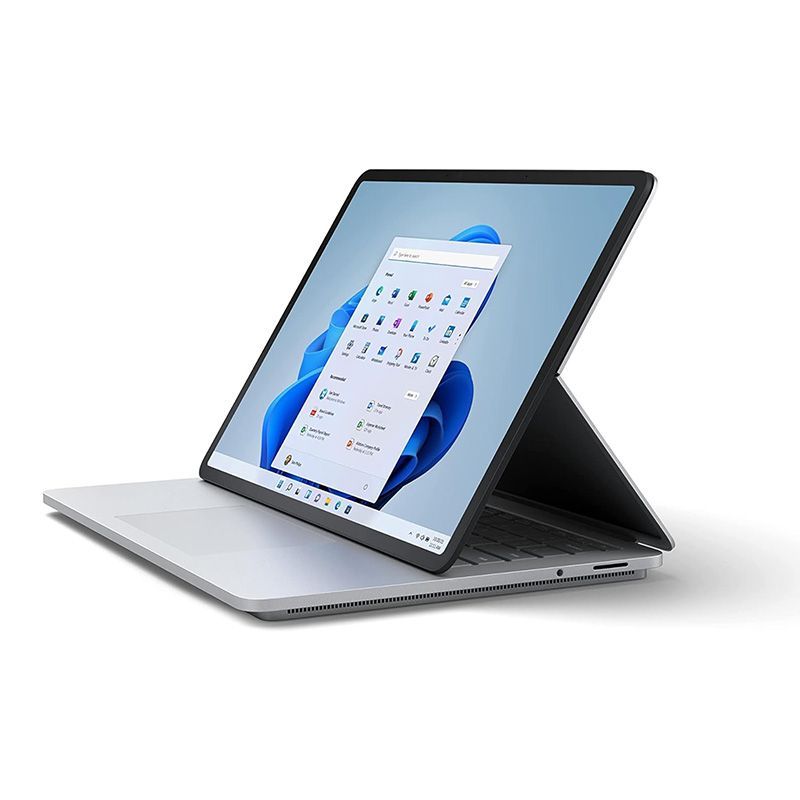
- For the Surface Laptop Studio: A powerful docking station with multiple ports (USB-C, USB-A, HDMI, Ethernet) is crucial for connecting multiple peripherals. Consider a high-resolution external monitor (ideally 4K) for enhanced visual clarity, especially for creative work. A comfortable ergonomic mouse is also a must for extended use.
- For the Surface Pro series: A Type Cover keyboard is essential for transforming the tablet into a laptop. Consider a Surface Pen for note-taking and drawing. A portable Bluetooth keyboard can be useful for on-the-go productivity. A Surface Arc Mouse offers compact portability.
- For the Surface Go series: Given its smaller size, prioritize compact accessories. A lightweight Bluetooth keyboard and a Surface Pen are practical choices. A smaller, travel-friendly mouse can improve usability.
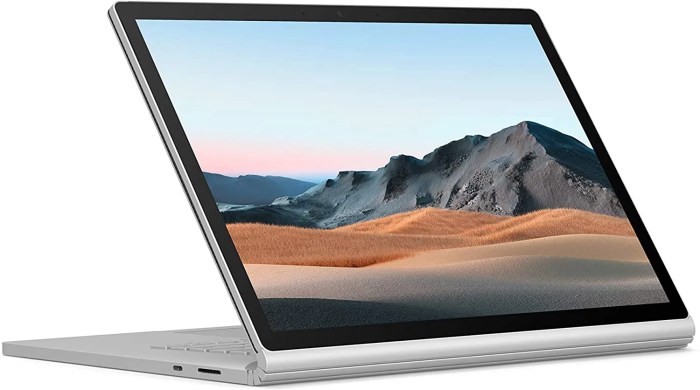
- For the Surface Book series: Similar to the Surface Laptop Studio, consider a docking station for expanded connectivity. A high-resolution external monitor is beneficial for multitasking. A comfortable, full-size keyboard can improve productivity. A dedicated graphic tablet could be considered for creative work.
Choosing the Right Accessories Based on Usage
The best accessories are those that seamlessly integrate with your workflow and enhance your productivity. Consider these factors:
- Primary Use Case: Are you primarily using your Surface for work, entertainment, or creative projects? This will influence the type of accessories you need.
- Portability Needs: If you frequently move around, prioritize lightweight and compact accessories. If you mostly use your Surface in a stationary location, you have more flexibility in choosing larger and more powerful peripherals.
- Budget: Accessories range widely in price. Set a budget before you start shopping to avoid overspending.
- Connectivity: Ensure that your chosen accessories are compatible with the ports on your Surface model. Check for USB-C, USB-A, Thunderbolt, and other connectivity options.
Accessory Compatibility
Microsoft generally ensures good compatibility within its Surface ecosystem, but it’s always advisable to verify compatibility before purchasing. For example, while most Bluetooth keyboards will work with any Surface, certain docking stations are designed specifically for particular Surface models. Always refer to the official Microsoft website or the accessory manufacturer’s specifications to ensure a seamless experience.
Price and Value
Source: hearstapps.com
Choosing a Microsoft Surface device involves careful consideration of its price point relative to the features and performance it offers. Different models cater to varying needs and budgets, making it crucial to understand the value proposition of each before making a purchase. This section breaks down the pricing structure across the Surface lineup and helps you determine which device provides the best value for your specific requirements.
Surface devices, while premium, offer a range of price points to accommodate different user needs and budgets. The entry-level models generally offer excellent value for everyday tasks, while higher-end devices are geared towards professionals requiring more power and advanced features. Understanding the price-performance relationship is key to making an informed decision.
Surface Model Pricing Comparison
The table below provides a general price comparison for different Surface models. Note that prices can vary depending on retailer, configuration (RAM, storage), and any ongoing promotions. These prices are estimates based on typical market pricing and may not reflect current sales or discounts.
| Model | Starting Price (USD) | Typical Configuration | Value Proposition |
|---|---|---|---|
| Surface Go 3 | $399 | 8GB RAM, 64GB Storage | Excellent portability and affordability for basic tasks. |
| Surface Laptop Go 2 | $599 | 8GB RAM, 128GB Storage | Balance of portability, performance, and style for everyday use and productivity. |
| Surface Pro 8 | $899 | 8GB RAM, 128GB Storage | Powerful 2-in-1 versatility ideal for creative professionals and students. |
| Surface Laptop Studio | $1599 | 16GB RAM, 512GB Storage | High-end performance for demanding creative tasks and gaming, premium build quality. |
Determining Value for Money
The value of a Surface device isn’t solely determined by its price tag. Consider the following factors when assessing its value proposition:
- Performance: Does the processor, RAM, and storage meet your needs? A more powerful device may justify a higher price if you’re a demanding user.
- Features: Do you need a touchscreen, stylus support, or a detachable keyboard? The additional features often increase the price but can significantly enhance usability.
- Build Quality and Design: Surface devices are known for their premium build quality and sleek design. This contributes to their higher price but also ensures durability and longevity.
- Software and Ecosystem: The seamless integration with Windows 11 and the Microsoft ecosystem adds value for users invested in the Microsoft environment.
Finding the Best Deals and Discounts
Several strategies can help you secure the best possible price on a Surface device:
- Check Microsoft’s Official Website: Microsoft often runs sales and promotions directly on their website.
- Retailer Sales: Major electronics retailers (Best Buy, Amazon, etc.) frequently offer discounts on Surface devices, particularly during holiday seasons.
- Student and Education Discounts: Microsoft provides discounted pricing for students and educational institutions.
- Refurbished Devices: Consider buying a certified refurbished Surface from Microsoft or a reputable retailer for significant savings. These devices undergo rigorous testing and come with warranties.
Troubleshooting and Support
So, you’ve got your shiny new Surface. Fantastic! But even the most reliable tech can occasionally throw a curveball. Knowing how to handle minor hiccups and where to turn for help when things go sideways is key to maximizing your Surface experience. This section covers common troubleshooting tips and Artikels the support options available from Microsoft.
Let’s face it, nobody wants to spend their precious time wrestling with tech issues. A little preventative maintenance and a clear understanding of your support options can save you a lot of frustration down the line. Whether it’s a minor software glitch or a more serious hardware problem, Microsoft offers a range of support resources to get you back on track.
Common Troubleshooting Tips
Before you reach out for help, try these simple troubleshooting steps. Often, a quick fix can resolve the issue without needing to involve customer support.
- Restart your Surface: This might seem obvious, but a simple restart often resolves temporary software glitches. Think of it as a digital deep breath for your device.
- Check for updates: Ensure your Windows operating system and Surface firmware are up-to-date. Updates frequently include bug fixes and performance improvements.
- Troubleshoot connectivity issues: If you’re experiencing Wi-Fi problems, check your router settings, try restarting your router, or consider using your mobile hotspot as a temporary alternative.
- Manage your storage: A cluttered hard drive can slow down your Surface. Delete unnecessary files and uninstall unused applications to free up space.
- Run a system scan: Windows has built-in tools to scan for and remove malware. Regularly running a scan can prevent performance issues and security threats.
Microsoft Support Options, Microsoft surface buying guide
If the simple troubleshooting steps don’t resolve the problem, Microsoft offers a variety of support channels to assist you. These options cater to different levels of technical expertise and urgency.
So, you’re diving into our Microsoft Surface buying guide? Smart move! Finding the perfect Surface can be a game-changer for productivity, especially when managing home projects. Need a handyman? Check out the thumbtack app for homeowners to easily find local pros. Back to those Surfaces – remember to consider your budget and workflow before making a purchase!
- Online Resources: Microsoft’s website provides extensive online documentation, FAQs, and troubleshooting guides for Surface devices. These resources are a great starting point for finding solutions to common problems.
- Phone Support: For more immediate assistance, Microsoft offers phone support. You can speak directly with a support representative who can guide you through troubleshooting steps or schedule a repair.
- Repair Services: If you’re dealing with a hardware issue, Microsoft offers repair services. These services can range from in-home repairs to sending your Surface to a repair center. The availability and cost of repair services will vary depending on your location and the nature of the problem. In some cases, a replacement device might be offered.
Warranty Coverage
Microsoft provides a standard warranty for Surface devices, typically covering manufacturing defects for a specific period. The exact duration of the warranty varies depending on the region and the specific Surface model purchased. It’s crucial to understand the terms and conditions of your warranty to know what’s covered and how to file a claim.
Many retailers also offer extended warranty options, providing additional coverage beyond the manufacturer’s warranty. These extended warranties often cover accidental damage, such as drops or spills, which are typically not included in the standard manufacturer’s warranty. Consider the value of an extended warranty based on your personal usage habits and risk tolerance.
Illustrative Examples of Surface Use Cases
The versatility of Microsoft Surface devices shines through in their adaptability to diverse professional and personal needs. From the power of the Surface Studio for creative professionals to the portability of the Surface Go for students, each model caters to specific workflows and lifestyles. Let’s explore some compelling examples.
Graphic Design with Surface Studio
The Surface Studio, with its unique adjustable hinge and vibrant touchscreen display, is a game-changer for graphic designers. Imagine a designer effortlessly rotating the screen to a comfortable angle for sketching directly onto the display using the Surface Pen. The pressure sensitivity of the pen allows for nuanced line weight and texture control, replicating the feel of traditional pen and paper. The high resolution display provides incredible detail and color accuracy, crucial for reviewing fine details in intricate designs. The powerful processor ensures smooth performance even when working with large, complex files in demanding design software like Adobe Photoshop or Illustrator. The large screen real estate allows for efficient multitasking, letting designers keep their reference images, tool palettes, and design files readily accessible.
Note-Taking in Lectures with Surface Pro
A student attending a university lecture can easily capture detailed notes using the Surface Pro and Surface Pen. The lightweight and portable design allows for effortless note-taking during lectures, without the bulk of a traditional laptop. The pen’s responsiveness and accuracy ensures notes are legible and easy to review later. The ability to quickly switch between note-taking and browsing supplementary materials online enhances the learning experience. The long battery life of the Surface Pro ensures that the device lasts throughout the entire lecture and beyond. The device can later be seamlessly synced with OneNote or other note-taking applications for easy organization and access.
Casual Browsing and Media Consumption with Surface Go
The Surface Go offers a perfect blend of portability and performance for casual browsing and media consumption. Its compact size makes it ideal for travel, allowing users to catch up on emails, browse social media, or stream videos on the go. The touchscreen interface offers an intuitive and responsive experience for browsing websites and interacting with apps. The lightweight design makes it easy to hold for extended periods, ideal for reading e-books or watching videos comfortably. The device’s long battery life ensures that users can enjoy their media without constantly worrying about power. The affordability makes it an attractive option for users who need a versatile device for everyday tasks without breaking the bank.
Portable Workstation for Freelance Writers with Surface Laptop
For a freelance writer, the Surface Laptop provides a powerful and portable workstation. The comfortable keyboard and precision trackpad offer a superior typing experience, allowing for efficient writing and editing of documents. The device’s sleek and professional design is ideal for working in various settings, from coffee shops to client meetings. The long battery life ensures that writers can work on the go without interruption. The device’s robust processing power handles demanding tasks like running writing software and managing large files efficiently. The integrated storage capacity allows writers to store their work and other important files directly on the device, minimizing reliance on external storage.
Epilogue
Source: makeuseofimages.com
Ultimately, the best Microsoft Surface for you depends on your individual needs and budget. This guide has armed you with the knowledge to weigh the pros and cons of each model, understand the importance of accessories, and navigate the world of Surface specs. Remember to consider your daily usage, desired performance, and preferred form factor. With careful consideration, you’ll find the perfect Surface device that seamlessly integrates into your life, boosting productivity and enhancing your digital experience. Happy computing!