Free accounting software in Excel offers a surprisingly powerful, albeit limited, solution for managing finances. While dedicated accounting software boasts robust features and scalability, Excel’s accessibility and familiarity make it a tempting option, especially for small businesses or individuals. This guide explores the advantages and disadvantages of leveraging Excel for accounting tasks, providing practical advice and insights to help you decide if it’s the right fit for your needs.
We’ll cover everything from finding and evaluating suitable free templates to mastering essential formulas and advanced techniques like pivot tables and macros. We’ll also address crucial aspects of data management and security, and compare Excel’s capabilities with dedicated accounting software to help you make an informed decision. Whether you’re a seasoned accountant or a novice just starting out, this guide offers valuable knowledge to navigate the world of free Excel-based accounting.
Introduction to Free Accounting Software in Excel
Microsoft Excel, while not a dedicated accounting software, offers a surprisingly versatile platform for managing basic financial records. Its widespread availability and user-friendly interface make it an attractive option for small businesses and individuals with limited budgets. However, relying solely on Excel for accounting comes with its own set of advantages and disadvantages.
Excel’s accessibility and familiarity are significant advantages. Many individuals already possess proficiency in Excel, reducing the learning curve associated with adopting new software. The software is readily available, requiring no additional purchase or subscription fees for basic functionality. Furthermore, Excel allows for considerable customization, enabling users to tailor their spreadsheets to specific accounting needs.
Despite these benefits, relying on Excel for accounting presents limitations. The lack of built-in safeguards against errors and the absence of automated features found in dedicated accounting software can lead to inaccuracies and inefficiencies. The risk of data loss due to corrupted files or accidental deletion is also significantly higher. Free Excel templates, while convenient, often lack the sophistication and robust features of commercially available accounting software, potentially limiting their effectiveness as the business grows. Moreover, advanced features like inventory management and multi-currency support are generally absent or require extensive manual configuration.
Advantages and Disadvantages of Using Excel for Accounting
Excel’s ease of use and widespread availability make it a tempting option for basic accounting. Its spreadsheet format allows for clear visualization of financial data and the ability to perform simple calculations. However, this simplicity can also be a source of significant limitations. The absence of features such as audit trails and robust security measures increases the risk of errors and data breaches. Manual data entry is time-consuming and prone to human error, making scaling difficult. While Excel can handle basic accounting tasks, its limitations become more apparent as the complexity of financial transactions increases.
Limitations of Using Free Excel Templates Versus Dedicated Accounting Software
Free Excel templates offer a basic framework for accounting, but they often lack the comprehensive features and security measures of dedicated accounting software. Dedicated software packages typically include automated features such as invoice generation, bank reconciliation, and financial reporting, streamlining accounting processes and reducing the potential for errors. They often offer better data security and protection against data loss, a critical concern for any business handling sensitive financial information. The scalability of dedicated software is also a major advantage; as a business grows, it can easily adapt to handle increasing volumes of transactions and complex accounting needs, unlike Excel, which requires significant manual adjustments. Furthermore, dedicated software frequently provides support and updates, ensuring that users always have access to the latest features and security patches.
Essential Accounting Functions Performed in Excel
Understanding which accounting functions can be effectively managed within Excel is crucial for informed decision-making. While Excel may not be ideal for all aspects of accounting, it can be a useful tool for managing certain core functions.
| Function | Description | Excel Formula/Method | Limitations |
|---|---|---|---|
| Income Statement | Summarizes revenues and expenses over a period. | SUM, IF functions to categorize transactions; custom formulas for calculations. | Requires manual data entry and categorization; prone to errors; limited reporting capabilities compared to dedicated software. |
| Balance Sheet | Shows assets, liabilities, and equity at a specific point in time. | SUM function to total assets, liabilities, and equity; manual categorization. | Manual data entry and categorization are time-consuming and error-prone; lacks advanced features for analysis. |
| Cash Flow Statement | Tracks cash inflows and outflows. | Manual data entry and categorization; SUM function to calculate net cash flow. | Prone to errors; limited analysis and reporting capabilities; no automated reconciliation. |
| General Ledger | Records all financial transactions. | Manual data entry; potentially using pivot tables for summarization. | Highly susceptible to errors due to manual data entry; lacks automated features for data validation and error checking. |
Finding and Evaluating Free Excel Accounting Templates
Finding a suitable free Excel accounting template can significantly streamline your bookkeeping process. However, navigating the vast array of options available online requires careful consideration to ensure you select a template that meets your needs and maintains data integrity. This section will guide you through the process of finding and evaluating these templates.
Choosing the right template is crucial for efficient accounting. A poorly designed template can lead to errors, inconsistencies, and ultimately, inaccurate financial reporting. Therefore, a methodical approach to selection is vital.
Resources for Finding Free Excel Accounting Templates
Several online resources offer free Excel accounting templates. Websites specializing in templates, such as Template.net, Vertex42, and Spreadsheet123, often feature a selection of accounting templates catering to various needs, from simple personal budgets to more complex business accounting. Additionally, many accounting blogs and forums provide links to free templates or discuss user experiences with specific templates. Remember to always carefully review the source’s credibility before downloading any template.
Criteria for Evaluating Free Excel Accounting Templates
Evaluating the quality and reliability of a free Excel accounting template requires a critical eye. Factors such as the template’s design, functionality, and security should be assessed. A well-designed template is intuitive, easy to navigate, and visually appealing, improving user experience and reducing the chance of errors. Functionality refers to the template’s ability to accurately perform the intended accounting functions, such as tracking income and expenses, generating reports, and calculating key financial metrics. Security is less of a concern for personal use but crucial for business applications, ensuring sensitive financial data is protected. It’s also important to consider the template’s compatibility with your version of Excel.
Checklist of Features to Look For in a Suitable Template
Before downloading a template, consider these key features:
- Clear and Concise Layout: The template should be easy to understand and use, with clearly labeled sections and fields.
- Comprehensive Functionality: The template should include features to track income, expenses, and other relevant financial data, depending on your needs.
- Formula Accuracy: Verify that all formulas are correct and accurately calculate balances, totals, and other financial metrics. This is crucial for the accuracy of your financial data.
- Customizability: The template should allow you to customize it to fit your specific business needs and preferences, such as adding additional categories or modifying the layout.
- Report Generation: The template should ideally include the ability to generate various financial reports, such as income statements, balance sheets, and cash flow statements. These reports are vital for financial analysis and decision-making.
- Data Validation: Look for features that prevent incorrect data entry, such as drop-down menus for account selection or data validation rules to ensure consistency and accuracy.
- Protection of Sensitive Data: If using for business, consider features that protect sensitive financial information, such as password protection or restricted access.
- Regular Updates: If possible, choose a template from a reputable source that provides regular updates to address bugs or improve functionality.
Setting Up a Basic Accounting System in Excel: Free Accounting Software In Excel
Creating a functional accounting system in Excel requires careful planning and organization. A well-structured spreadsheet can significantly simplify tracking income, expenses, and ultimately, your financial health. This section will guide you through the process of designing such a system, incorporating basic formulas, and visualizing your data effectively.
Designing an Income and Expense Tracker
A simple yet effective income and expense tracker can be created using several columns. Start with columns for “Date,” “Description,” “Category” (e.g., Rent, Utilities, Sales, etc.), “Income,” and “Expense.” Each transaction should be recorded on a separate row. The “Income” and “Expense” columns will contain numerical values; for income, use positive numbers, and for expenses, use negative numbers. This ensures that your net income is calculated correctly using a simple sum function. Consider adding additional columns for notes or references as needed. Consistency in data entry is crucial for accurate reporting.
Implementing Basic Accounting Formulas
Excel’s built-in functions greatly simplify calculations. The `SUM` function is fundamental for calculating total income and total expenses. For example, `=SUM(E:E)` will sum all values in column E (assuming column E contains income values). Similarly, `=SUM(F:F)` would sum all values in column F (assuming column F contains expense values). The `IF` function can be used for conditional calculations. For example, `=IF(E2>0,E2,0)` will return the value in cell E2 if it’s positive (income), otherwise it returns 0. This can be useful for isolating income values from your overall data. The `VLOOKUP` function allows you to retrieve data from another table based on a lookup value. This is helpful if you have a separate table of categories with associated tax rates, for example.
Creating Charts and Graphs to Visualize Financial Data
Visual representations of your financial data offer valuable insights. Charts and graphs make it easy to identify trends and patterns. Excel provides a variety of chart types, each suited to different data representations. For example, a column chart effectively displays income and expenses over time, while a pie chart shows the proportion of expenses across different categories. Creating charts is straightforward; simply select your data range, go to the “Insert” tab, and choose the desired chart type.
Chart Examples
Creating informative charts is key to understanding your financial data. Below is a table illustrating different chart types and their applications within an accounting context.
| Chart Type | Purpose | Data Used | Example Formula/Steps |
|---|---|---|---|
| Column Chart | Compare income and expenses over time. | Date, Income, Expense columns. | Select the “Date”, “Income”, and “Expense” columns. Go to the “Insert” tab and choose “Column Chart”. |
| Pie Chart | Show the proportion of expenses across different categories. | Category, Expense columns. | Select the “Category” and “Expense” columns. Go to the “Insert” tab and choose “Pie Chart”. |
| Line Chart | Visualize trends in net income over time. | Date, Net Income (calculated as Income – Expense) column. | Calculate Net Income in a new column using `=SUM(Income Column) – SUM(Expense Column)`. Select “Date” and “Net Income” columns. Go to “Insert” tab and choose “Line Chart”. |
| Bar Chart | Compare income and expenses for specific periods (e.g., monthly). | Month, Income, Expense columns. | Select “Month”, “Income”, and “Expense” columns. Go to “Insert” tab and choose “Bar Chart”. |
Advanced Features and Techniques in Excel for Accounting
While basic Excel functions suffice for simple accounting tasks, leveraging advanced features significantly enhances efficiency and analytical capabilities. This section explores powerful tools within Excel that can transform your accounting processes from rudimentary record-keeping to sophisticated financial analysis. Mastering these techniques allows for deeper insights into your financial data and facilitates more informed decision-making.
Excel Pivot Tables for Data Analysis and Reporting
Pivot tables are a cornerstone of Excel’s data analysis capabilities. They allow for the dynamic summarization and aggregation of large datasets, providing a flexible and interactive way to explore your accounting data. Instead of manually sifting through numerous rows and columns, you can quickly create insightful reports showing key performance indicators (KPIs) such as revenue by month, expenses by category, or profit margins over time. For example, you could easily summarize sales data from a large spreadsheet, instantly grouping sales by product, region, and sales representative to identify top performers or areas needing improvement. This interactive nature allows for immediate adjustments and different perspectives on the data, fostering a more agile and informed approach to financial analysis. The ability to filter, sort, and group data within the pivot table ensures that you can quickly focus on specific aspects of your financial performance, providing a powerful tool for both routine reporting and ad-hoc analysis.
Using Macros and VBA for Automating Accounting Tasks
Visual Basic for Applications (VBA) allows for the creation of macros, which are essentially automated sequences of actions within Excel. This functionality is invaluable for automating repetitive accounting tasks, significantly reducing manual effort and the potential for human error. For instance, a macro could be designed to automatically generate monthly financial statements, consolidate data from multiple worksheets, or even perform complex calculations across large datasets. Consider a scenario where you need to prepare monthly balance sheets. A VBA macro could automate the process of pulling data from various accounts, performing calculations, and formatting the final report, saving considerable time and minimizing the risk of errors associated with manual entry. While requiring some programming knowledge, the time saved and accuracy gained through automation often outweigh the initial learning curve. Examples of automated tasks include invoice generation, data validation, and report distribution.
Creating Custom Functions and Formulas to Enhance Functionality, Free accounting software in excel
Excel’s built-in functions cover a wide range of accounting needs, but sometimes custom functions are necessary to address specific requirements or streamline complex calculations. Creating custom functions using VBA allows you to extend Excel’s functionality, tailoring it to your specific accounting processes. For example, you might create a custom function to calculate depreciation using a specific method not directly supported by Excel’s built-in functions, or to automate complex tax calculations based on your country’s tax laws. A custom function could be created to calculate the effective tax rate, taking into account various tax deductions and credits. This would be more efficient than manually performing these calculations each time, and would ensure consistency in the application of the tax laws. The formula might look something like this:
`=EffectiveTaxRate(GrossIncome, Deductions, Credits)`
where the function `EffectiveTaxRate` is defined in VBA to perform the necessary calculations. This allows for easier maintenance and reuse of complex calculations across multiple spreadsheets.
Data Management and Security in Excel Accounting Spreadsheets
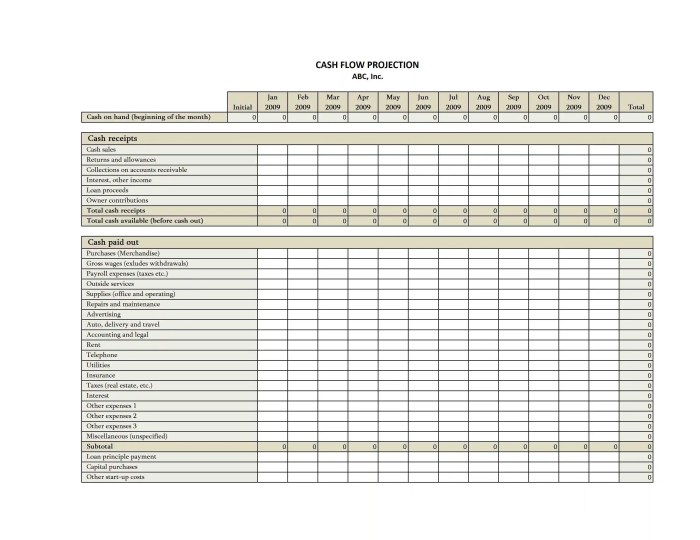
Source: db-excel.com
While free accounting software in Excel offers a basic solution for smaller businesses, more sophisticated needs might require a dedicated system. For instance, businesses handling significant transaction volumes might find the capabilities of emv x2 software beneficial, especially regarding payment processing. Ultimately, the choice depends on your specific requirements; however, for simple bookkeeping, Excel remains a viable option.
Effective data management and robust security measures are crucial for maintaining the integrity and confidentiality of your financial information when using Excel for accounting. Poorly organized data can lead to errors and inefficiencies, while inadequate security can expose sensitive financial details to unauthorized access and modification. This section Artikels best practices for both aspects.
Proper data organization within your Excel accounting system is paramount for accuracy and efficient analysis. A well-structured spreadsheet makes it easier to locate specific information, identify trends, and generate accurate reports. This is achieved through consistent formatting, clear labeling, and the use of appropriate data validation techniques.
Data Organization Best Practices
Implementing a clear and consistent file naming convention is the first step. For example, using a date-based system like “YYYYMMDD_Account Name” ensures easy sorting and retrieval. Within the spreadsheet itself, each sheet should have a clear purpose, such as “Income Statement,” “Balance Sheet,” or “Trial Balance.” Employing consistent formatting, such as using currency formatting for monetary values and date formatting for dates, improves readability and reduces the risk of errors. Data validation, where you restrict the type of data entered into specific cells (e.g., only numbers for quantities, specific text for account names), ensures data integrity. Finally, using formulas to automate calculations minimizes manual entry and the associated risk of human error. Consider using named ranges to make formulas more readable and maintainable. For instance, instead of `=SUM(A1:A10)`, you could name the range `TotalSales` and use `=SUM(TotalSales)`.
Data Protection Methods
Protecting your financial data from unauthorized access and modification requires a multi-layered approach. Excel offers several built-in features to enhance security, but combining these with additional precautions is essential for comprehensive protection.
Security Measures and Precautions
Implementing robust security measures is vital to protect your sensitive financial data. Consider the following:
- Password Protection: Use strong, unique passwords to protect your Excel files. Avoid easily guessable passwords and regularly update them. Excel allows setting password protection for opening and modifying the file, preventing unauthorized access and changes.
- Restrict Editing: Utilize Excel’s “Protect Sheet” and “Protect Workbook” features to restrict access to certain cells or the entire spreadsheet. This prevents accidental or intentional data alteration. You can specify which cells can be edited and which are locked.
- Data Validation: Implement data validation rules to prevent incorrect data entry. For example, you could restrict a cell to accept only numerical values or dates within a specific range.
- Regular Backups: Regularly back up your Excel files to a secure location, such as an external hard drive or cloud storage service. This protects against data loss due to hardware failure or accidental deletion. Consider using version control systems for tracking changes.
- Access Control: Limit access to your Excel files to authorized personnel only. Store files securely and avoid sharing them unnecessarily.
- Antivirus Software: Ensure your computer is protected with up-to-date antivirus software to prevent malware infections that could compromise your data.
- Digital Signatures: While not directly built into Excel, exploring the use of digital signatures on shared workbooks can help verify the authenticity and integrity of your financial data. This provides an additional layer of security and trust, especially when collaborating with others.
Limitations and Alternatives to Free Excel Accounting Software
While free Excel-based accounting solutions offer a convenient entry point for small businesses or individuals with simple accounting needs, they present significant limitations when dealing with larger enterprises or complex accounting scenarios. The scalability and functionality of Excel spreadsheets often fall short of the requirements of more sophisticated accounting practices. This section explores these limitations and examines viable alternatives.
The inherent limitations of Excel as an accounting tool become increasingly apparent as the volume of transactions and the complexity of accounting requirements grow. Manually managing large datasets within Excel is prone to errors, making reconciliation and audit trails challenging. Furthermore, Excel lacks built-in features for crucial accounting functions such as inventory management, multi-currency accounting, and robust reporting capabilities found in dedicated accounting software. The absence of advanced security features also raises concerns regarding data protection and compliance with relevant regulations.
Comparison of Free Accounting Software Options
This comparison highlights the key differences between using free Excel templates and dedicated free or low-cost accounting software. We will consider two hypothetical software packages, Software A and Software B, to illustrate the advantages of purpose-built solutions. Note that the features and pricing of actual software packages can vary considerably.
| Feature | Excel | Software A | Software B |
|---|---|---|---|
| Transaction Entry | Manual entry; prone to errors; limited automation | Automated entry options; import capabilities; error checking | User-friendly interface; customizable transaction templates; batch processing |
| Reporting | Limited reporting options; requires manual creation of reports; no real-time data | Pre-built reports; customizable report generation; real-time data access | Comprehensive reporting suite; drill-down capabilities; export options (PDF, CSV, etc.) |
| Inventory Management | Requires manual tracking; limited functionality; prone to discrepancies | Basic inventory tracking; stock alerts; reorder point calculations | Advanced inventory management; real-time stock updates; integration with POS systems |
| Financial Statements | Manual creation of balance sheets, income statements, and cash flow statements | Automatic generation of financial statements; customizable formats | Automated generation; multiple reporting periods; comparative analysis tools |
| Multi-Currency Support | No built-in support; requires manual conversion and tracking | Limited multi-currency support; manual exchange rate updates | Full multi-currency support; automatic exchange rate updates; consolidated reporting |
| Security | Relies on user’s operating system security; limited access controls | Password protection; user roles and permissions | Robust security features; encryption; audit trails; compliance with data protection regulations |
| Scalability | Limited scalability; becomes unwieldy with large datasets | Moderate scalability; suitable for small to medium-sized businesses | Highly scalable; suitable for businesses of all sizes |
| Cost | Free (excluding Excel license) | Free (limited features); paid version available | Subscription-based; tiered pricing based on features and users |
Illustrative Example: Tracking Monthly Expenses in Excel
This section demonstrates the practical application of Excel for personal finance management by creating a simple yet effective monthly expense tracker. We will design a spreadsheet, detail the formulas used, and show how to generate a summary report and a visual representation of your spending habits. This example provides a foundation you can adapt to your specific needs.
Spreadsheet Design for Monthly Expense Tracking
The following table Artikels the structure of a sample Excel spreadsheet designed to track monthly expenses. Each column serves a specific purpose in organizing and summarizing your financial data.
| Date | Category | Description | Amount |
|---|---|---|---|
| 01/01/2024 | Groceries | Supermarket shopping | 150 |
| 01/05/2024 | Transportation | Bus fare | 10 |
| 01/10/2024 | Dining Out | Restaurant meal | 50 |
| 01/15/2024 | Groceries | Farmers Market | 75 |
| 01/20/2024 | Utilities | Electricity bill | 120 |
The “Date” column records the transaction date. The “Category” column categorizes expenses (e.g., Groceries, Transportation, Utilities). The “Description” column provides a more detailed explanation of each expense. Finally, the “Amount” column records the monetary value of each expense.
Calculating Monthly Expense Totals and Creating a Summary Report
To calculate the total monthly expenses, we’ll use the SUMIF function. This function sums values based on a specific criteria. In a separate cell (e.g., below the table), you can use the following formula:
=SUMIF(B:B,"Groceries",D:D)
This formula sums the values in column D (Amount) where the corresponding cell in column B (Category) is “Groceries”. You can then repeat this formula for each category to generate a summary report. Alternatively, you can use a pivot table to automatically generate a summary report of your expense categories and totals.
Visual Representation of Monthly Expense Data
A column chart effectively visualizes monthly expenses by category. To create this chart, select the data including category names and their corresponding totals from the summary report. Then, go to the “Insert” tab and choose the “Column” chart type. The chart will display each category on the horizontal axis and the total expense amount on the vertical axis, providing a clear visual representation of your spending patterns. The chart’s title could be “Monthly Expense Breakdown,” and the axes should be clearly labeled “Expense Category” and “Total Amount,” respectively. The chart will visually highlight which expense categories contribute the most to your overall monthly spending.
Conclusion
Ultimately, the decision of whether to use free accounting software in Excel hinges on your specific requirements and technical proficiency. While Excel provides a readily available and cost-effective solution for basic accounting needs, understanding its limitations is crucial. By carefully evaluating your needs, selecting the right template, and implementing robust data management practices, you can successfully utilize Excel for accounting. However, for complex accounting needs or larger businesses, dedicated software remains the more appropriate and reliable choice. This guide has provided a comprehensive overview, equipping you with the knowledge to make an informed choice.