Creality 3D printer software unlocks the full potential of your 3D printing experience. This guide delves into the various software options available, from Creality’s proprietary software to popular alternatives like Cura and PrusaSlicer. We’ll explore the features, functionalities, and intricacies of each, providing a detailed comparison to help you choose the best software for your needs. We’ll also cover installation, slicing techniques, troubleshooting common issues, and accessing valuable community resources.
From basic print preparation to advanced customization and troubleshooting, we aim to equip you with the knowledge to confidently navigate the world of Creality 3D printing software. Whether you’re a seasoned 3D printing enthusiast or a curious beginner, this guide offers practical insights and actionable steps to enhance your printing journey.
Creality 3D Printer Software Overview
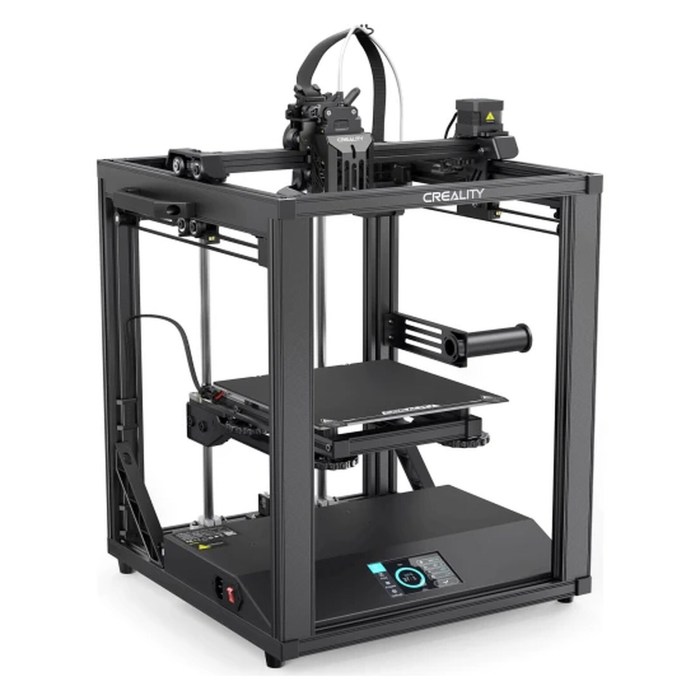
Source: ldlc.com
Creality offers a range of software options for its 3D printers, catering to different user skill levels and printing needs. Understanding these options and their functionalities is crucial for maximizing the potential of your Creality printer. This overview will explore the available software, highlighting key features and comparing them to industry-standard alternatives.
Available Software Options for Creality 3D Printers
Creality primarily supports its own proprietary slicing software, often pre-installed or readily available for download on their website. This software offers a streamlined user experience designed for ease of use, particularly for beginners. However, users can also utilize widely popular third-party slicing software like Cura, PrusaSlicer, and Simplify3D, which offer more advanced features and customization options. The choice depends on the user’s experience and specific printing requirements.
Key Features and Functionalities of Creality’s Proprietary Software
Creality’s software typically includes features such as automatic bed leveling, which simplifies the setup process for users. It often offers a variety of pre-configured profiles for common materials, making it easy to start printing quickly. The interface is generally intuitive, with clear visual cues guiding users through the slicing process. Advanced features might include support for different nozzle sizes, customisable print speeds, and temperature controls. Specific features can vary depending on the printer model and software version.
Comparison of Creality’s Software to Other Popular Slicing Software
Compared to other popular options like Cura, Creality’s software might offer a less extensive range of advanced features. Cura, for instance, boasts a larger community, leading to more readily available support and a wider selection of plugins. However, Creality’s software prioritizes ease of use and often provides a more streamlined workflow, especially beneficial for new users. PrusaSlicer and Simplify3D are known for their powerful features and fine-tuned control, but often come with a steeper learning curve. The best choice depends on individual needs and preferences. For example, a user focusing on speed and simplicity might prefer Creality’s software, while a user seeking precise control over every aspect of the print might choose Cura or PrusaSlicer.
Installing and Configuring Creality’s Software: A Step-by-Step Guide
The installation process generally involves downloading the software from Creality’s official website. Once downloaded, the installer should be run, following the on-screen prompts. This typically includes selecting the installation directory and accepting the terms and conditions. After installation, connecting the 3D printer to the computer via USB is necessary. The software will then detect the printer and allow for configuration. This usually involves setting up the printer’s dimensions, nozzle diameter, and bed size. Calibration of the printer, such as auto-bed leveling, is typically handled within the software’s interface, following the on-screen instructions. Finally, a test print is highly recommended to ensure everything is functioning correctly. Detailed instructions are usually provided in the software’s help section or Creality’s user manuals.
Slicing and Print Preparation with Creality Software
Creality’s 3D printer software offers a user-friendly interface for preparing 3D models for printing. This section details the process of importing models, adjusting slicing settings, and generating support structures, all within the Creality software environment. Understanding these steps is crucial for achieving optimal print quality and efficiency.
Importing and preparing 3D models involves several key steps. First, you will need to import your 3D model file (typically an STL or OBJ file) into the Creality software. The software will then display a preview of the model, allowing you to visually inspect it for any errors or inconsistencies. You can then scale, rotate, and position the model on the build plate as needed to optimize the print orientation. This process significantly impacts print time and support structure requirements. Careful placement can minimize the need for extensive support structures, resulting in faster prints and less post-processing work.
Creality 3D printer software offers a user-friendly interface for managing print jobs, but efficient project management extends beyond just printers. For instance, coordinating large-scale construction projects requires robust scheduling, which is where tools like construction employee scheduling software become invaluable. Similarly, effective use of Creality’s software requires careful planning and organization to maximize efficiency and minimize wasted materials.
Slicing Settings and Their Impact
Slicing settings directly influence the quality, speed, and success of your 3D prints. These settings control various aspects of the print process, from layer height and infill density to nozzle temperature and print speed. Modifying these parameters allows for fine-tuning the print to meet specific needs and material properties. For example, using a smaller layer height will result in a smoother, higher-resolution print, but it will increase the print time. Conversely, a higher infill density will lead to a stronger, more durable print, but will also use more filament.
Generating Support Structures and Rafts
Creality’s software provides tools to generate support structures and rafts. Support structures are crucial for printing models with overhanging sections that would otherwise collapse during printing. The software allows you to adjust the support density, pattern, and angle to optimize support effectiveness and minimize the amount of support material needed. Rafts, on the other hand, are a thin layer of material printed beneath the model. They help improve first-layer adhesion, particularly on smooth build plates, and can aid in removing the print after completion. Both support structures and rafts can be customized based on the model’s geometry and the material being used.
Comparison of Slicing Options
The following table summarizes the effects of various slicing options on print quality and speed.
| Setting | Effect on Print Quality | Effect on Print Speed | Notes |
|---|---|---|---|
| Layer Height | Smaller height = smoother surface, higher detail | Smaller height = slower speed | Balance quality and speed based on model complexity. |
| Infill Density | Higher density = stronger, more durable print | Higher density = slower speed, more filament used | Adjust based on the intended use of the printed object. |
| Print Speed | Higher speed = potentially rougher surface, less accurate | Higher speed = faster print time | Experiment to find the optimal speed for your printer and material. |
| Nozzle Temperature | Too low = under-extrusion, poor layer adhesion; Too high = stringing, warping | Generally doesn’t affect speed directly, but affects print quality which indirectly impacts speed due to potential failures. | Adjust based on the filament type and ambient temperature. |
Advanced Features and Customization
Creality’s 3D printer software offers a range of advanced features beyond basic slicing and print preparation, allowing for significant customization and optimization of your 3D printing workflow. These features empower users to fine-tune print settings for specific materials and achieve highly precise and repeatable results. Mastering these capabilities unlocks a new level of control and allows for advanced techniques.
This section delves into the advanced features available, including custom profiles, macros, and g-code modification, along with a suggested workflow for optimizing print settings for different materials. Examples showcasing the practical application of these advanced features are also provided.
Custom Profiles and Macros, Creality 3d printer software
Custom profiles allow users to save specific settings configurations for different materials, printers, or print styles. This eliminates the need to repeatedly input the same settings for each print. Macros, on the other hand, are sequences of commands that can automate complex tasks, such as bed leveling or filament changes. Creating and utilizing custom profiles and macros significantly streamlines the printing process and reduces the likelihood of errors. By saving frequently used settings combinations as profiles, users can quickly select the optimal settings for various materials, nozzle sizes, or print speeds. Similarly, macros can automate repetitive steps, saving time and improving consistency.
G-Code Modification
The software allows for direct modification of the generated G-code before printing. This advanced feature enables users to fine-tune specific aspects of the print, such as layer height, extrusion width, or print speed adjustments within specific sections of the model. While caution is advised, as incorrect modifications can lead to print failures, the ability to directly manipulate G-code provides a high degree of control for experienced users. For example, a user might manually adjust the speed for bridging sections of a print to improve the quality of those areas. This level of granular control is invaluable for addressing specific challenges and optimizing the print for the best possible results.
Optimizing Print Settings for Specific Materials
A structured workflow is crucial for effectively optimizing print settings for various materials. This typically involves a process of iterative testing and adjustment. First, select the appropriate material profile within the software. Then, conduct a test print using the default settings for that material. Carefully analyze the results of the test print, noting any imperfections such as warping, stringing, or insufficient adhesion. Based on the observed issues, adjust relevant settings, such as bed temperature, nozzle temperature, print speed, and retraction settings. Repeat the test print process until satisfactory results are achieved. Documenting each iteration with the corresponding settings and results is highly recommended for future reference.
Examples of Advanced Feature Application
The following examples illustrate how the advanced features can be used to achieve specific print results:
- Improved Bridging: By creating a custom profile with adjusted print speed and extrusion width specifically for bridging sections, users can significantly improve the quality and strength of bridges in their prints, reducing sagging and gaps.
- Reduced Stringing: Utilizing the retraction settings within a custom profile, users can minimize stringing, the unwanted filament strands that connect different parts of a print. Adjusting retraction distance and speed can significantly reduce this common printing artifact.
- Automated Bed Leveling: Employing a macro to automate the bed leveling process ensures consistent bed adhesion across the entire print bed, leading to improved first layer adhesion and print success rate.
- Customizable Support Structures: Through G-code modification, users can adjust the density and pattern of support structures to optimize support removal and minimize the impact on the final print’s surface quality.
Troubleshooting and Common Issues: Creality 3d Printer Software
Creality’s 3D printing software, while generally user-friendly, can occasionally present challenges. Understanding common problems and their solutions can significantly improve your printing experience and minimize downtime. This section details troubleshooting steps for software-related printing errors, connectivity issues, and software/firmware updates.
Software-Related Printing Errors
Effective troubleshooting of printing errors often involves systematically checking various software settings. Incorrect settings can lead to failed prints, layer adhesion problems, or dimensional inaccuracies. Begin by reviewing your slicer settings, ensuring they are appropriate for your chosen filament type, nozzle size, and print speed.
- Incorrect Layer Height: A layer height that is too high can result in a rough surface finish, while a layer height that is too low can significantly increase print time and potentially cause clogging. Verify the layer height setting matches your filament and nozzle size specifications. A common starting point is a layer height of 0.2mm for most filaments.
- Inaccurate Bed Leveling: An uneven bed can lead to inconsistent layer adhesion and ultimately, a failed print. The Creality software often provides bed leveling assistance features; utilize these to ensure a perfectly level print bed. If the bed isn’t level, the first few layers will not adhere properly.
- Print Speed and Acceleration Issues: Excessive print speed or acceleration can lead to poor layer adhesion, stringing, or even nozzle collisions. Start with slower print speeds and gradually increase them once you are confident in your settings.
- Incorrect Filament Settings: Using incorrect filament diameter settings in the slicer can lead to inaccurate extrusion, resulting in under-extrusion or over-extrusion. Always ensure your filament diameter setting in the software matches the actual diameter of your filament.
Connectivity Issues Between Software and Printer
Establishing a reliable connection between the Creality software and your 3D printer is crucial for successful printing. Problems can stem from various sources, including incorrect port selection, driver issues, or network connectivity problems.
- Incorrect Port Selection: Ensure the software is communicating with the correct COM port. Check your printer’s connection and select the appropriate COM port within the Creality software. The correct port is usually identified by the printer’s manufacturer and model.
- Driver Issues: Outdated or corrupted drivers can prevent communication. Update your printer drivers to the latest versions provided by Creality. This may involve uninstalling the old drivers and reinstalling the updated ones.
- Network Connectivity Problems (for Wi-Fi Printers): If using a Wi-Fi printer, ensure your printer and computer are connected to the same network. Restarting both your router and printer can often resolve temporary network glitches. Correct network settings within the printer’s menu are also essential.
Updating Creality Software and Printer Firmware
Regular updates are essential for maintaining optimal performance and accessing new features. Both the Creality software and your printer’s firmware can be updated independently.
- Software Updates: Check the Creality website for the latest version of their software. Download the installer and follow the on-screen instructions. Software updates often include bug fixes and performance improvements.
- Firmware Updates: Updating your printer’s firmware requires caution. Incorrectly flashing firmware can damage your printer. Always download the correct firmware version for your specific printer model from the Creality website. Follow the provided instructions carefully; this usually involves using a dedicated firmware updating tool within the Creality software.
Community and Support Resources
Navigating the world of 3D printing can sometimes feel overwhelming, especially when troubleshooting software issues. Fortunately, Creality provides a robust network of support resources to help users resolve problems and maximize their printing experience. This section details the various avenues available for obtaining assistance with Creality’s 3D printer software.
Creality fosters a strong online community where users can connect, share experiences, and assist each other in resolving software-related challenges. These online forums and communities are invaluable for troubleshooting, as users often encounter and solve similar problems, providing a wealth of readily available solutions. Direct interaction with experienced users can often provide quicker solutions than waiting for official support channels.
Creality’s Official Website and Documentation
Creality’s official website serves as the central hub for all things Creality, including comprehensive documentation for their 3D printer software. This documentation often includes user manuals, FAQs, troubleshooting guides, and software updates. The website typically provides tutorials and video guides to assist users with various aspects of the software, from initial setup to advanced features. Regularly checking the website for updates is crucial to ensure you have access to the latest bug fixes and feature enhancements. The clarity and comprehensiveness of the documentation vary depending on the specific software version and printer model.
Online Forums and Communities
Several online forums and communities dedicated to Creality 3D printers offer valuable support and troubleshooting resources. These platforms allow users to post questions, share solutions, and engage in discussions related to the software. Examples include dedicated sections on popular 3D printing forums, social media groups focused on Creality printers, and even dedicated Discord servers. Participating in these communities provides access to a large pool of knowledge and can significantly expedite the troubleshooting process. Remember to always search existing threads before posting a new question to avoid redundancy and leverage the knowledge already shared by the community.
Contacting Creality Customer Support
For software-related issues that cannot be resolved through self-help resources or community support, contacting Creality’s customer support is the next step. The process typically involves submitting a support ticket through their website, providing detailed information about the issue, including screenshots or videos if applicable. Creality’s response time can vary depending on the volume of support requests, but generally, they aim to provide timely assistance. It’s advisable to be prepared with information such as your printer model, software version, and a clear description of the problem encountered. Providing specific error messages or logs can also significantly aid in the troubleshooting process.
Comparison with Alternative Software
Choosing the right 3D printing software can significantly impact your workflow and print quality. While Creality’s software offers a user-friendly interface tailored to their printers, it’s beneficial to compare it to established options like Cura and PrusaSlicer to understand its strengths and weaknesses within the broader 3D printing landscape. This comparison focuses on ease of use, feature sets, and overall performance.
Ease of Use Comparison
Creality’s software prioritizes simplicity, making it relatively easy for beginners to navigate and quickly start printing. Cura, while offering a more extensive feature set, can feel slightly steeper for newcomers due to its broader range of settings. PrusaSlicer, known for its powerful features, also presents a learning curve, though its well-organized interface helps mitigate this. Each software offers tutorials and documentation, but Creality’s software generally requires less initial investment of time to become proficient.
Feature Comparison
The following table summarizes key feature comparisons between Creality’s software, Cura, and PrusaSlicer. Note that specific features and their availability might vary with software updates.
| Feature | Creality Software | Cura | PrusaSlicer |
|---|---|---|---|
| Ease of Use | High | Medium | Medium |
| Pre-configured Profiles | Excellent, specifically for Creality printers | Good, extensive community profiles available | Good, strong focus on Prusa printers, but versatile |
| Advanced Features (e.g., tree supports, adaptive layers) | Limited | Extensive | Extensive |
| Plugin Support | Limited | Extensive | Good |
| Slicing Speed | Moderate | Moderate | Generally fast, known for optimization |
| Community Support | Growing, but smaller than Cura and PrusaSlicer | Very large and active | Large and active, strong community around Prusa printers |
Advantages and Disadvantages of Each Software
Creality’s software offers a straightforward user experience, excellent pre-configured profiles for Creality printers, and a relatively simple learning curve. However, it lacks the advanced features and extensive plugin support found in Cura and PrusaSlicer.
Cura boasts a massive user base, extensive plugin support, and a wide array of features. However, its complexity might overwhelm beginners, and the sheer number of settings can be daunting.
PrusaSlicer is renowned for its speed and powerful features, particularly its support generation algorithms. It’s a robust choice for experienced users, but its steeper learning curve might deter beginners.
Scenarios for Software Preference
Beginners or users primarily working with Creality printers will likely find Creality’s software the most accessible and efficient option. Users requiring extensive customization, advanced features, or a wide range of plugins will benefit from Cura or PrusaSlicer. Experienced users prioritizing slicing speed and sophisticated support structures may favor PrusaSlicer. The choice often depends on individual needs and experience level.
Illustrative Examples of Software Usage
This section provides practical examples of using Creality’s 3D printer software, demonstrating its capabilities through a complex print project and showcasing features like multi-job management and print monitoring. We will walk through the process step-by-step, highlighting key settings and providing detailed descriptions of relevant software interfaces.
Complex Print Project: Articulated Robot Arm
This example details printing an articulated robot arm, a project requiring precise alignment and multiple parts. The model consists of six individual servo-motor-driven segments, each requiring careful orientation and support structures. We’ll cover the slicing process, support generation, and print bed arrangement using Creality’s software.
First, the STL files for each segment were imported into the Creality software. The software’s intuitive interface allowed for easy arrangement of the parts on the virtual print bed. Careful consideration was given to minimize print time and material usage while ensuring sufficient support for overhangs. The “Support” tab was used to automatically generate supports, which were then manually adjusted to prevent interference with moving joints. Specific settings included a 0.2mm layer height, 20% infill density, and a 3-perimeter shell for structural integrity. The print orientation was adjusted for each segment to minimize support usage and maximize strength. The screenshot shows the virtual print bed with all six segments arranged, supports generated, and the selected print settings displayed in a panel. The panel clearly shows the layer height, infill density, perimeter settings, and support structure settings. The virtual print bed displays a realistic representation of the model, showing each segment with its generated supports. The supports are strategically placed to minimize interference with the articulation points of the robot arm.
Once the settings were finalized, the software generated a G-code file. A second screenshot would show the G-code preview window, highlighting the different print movements and layers. The preview window would depict the movement of the print head, clearly showing the layering process and the placement of supports. The timeline at the bottom of the preview would indicate the estimated print time. The estimated print time for this complex model is shown to be approximately 12 hours.
Managing Multiple Print Jobs
The Creality software allows for efficient queue management. Multiple print jobs can be added to a queue, and the software will process them sequentially. This is particularly useful for projects involving several smaller components or repetitive prints.
To add multiple jobs, simply select the respective G-code files and add them to the print queue. The software will display a list of the queued jobs, showing their estimated print time and file names. A screenshot of this queue would show a numbered list of G-code files, each with its associated print time and the total estimated time for the entire queue. The user can also reorder the print queue by dragging and dropping the items. Additionally, individual jobs can be paused, resumed, or removed from the queue.
Monitoring Print Progress
During a print, the software provides real-time monitoring capabilities. This includes visual progress updates, temperature readings, and alerts for potential issues.
The monitoring interface displays a visual representation of the print progress, showing the current layer being printed and the remaining print time. A screenshot would show a live feed of the print process, with a progress bar indicating the percentage completed. Simultaneously, the software displays the current nozzle and bed temperatures, ensuring that they remain within the desired range. The software will also issue warnings or alerts if any issues arise, such as nozzle clogging, filament run-out, or unexpected temperature fluctuations. The screenshot will show a prominent warning display in case of such events, along with suggestions for troubleshooting.
Last Recap
Mastering Creality 3D printer software empowers you to unlock the full potential of your 3D printer. By understanding the software’s capabilities, optimizing settings, and troubleshooting effectively, you can consistently achieve high-quality prints. This guide provides a foundation for your journey, encouraging you to explore the advanced features and engage with the supportive community to further enhance your 3D printing skills. Remember, consistent practice and experimentation are key to mastering this essential aspect of 3D printing.